
Creating a high-quality YouTube video takes hours of research, filming, and editing. But once you hit publish, you shouldn't let that content sit in a silo. Repurposing your video content is the secret to scaling your presence across multiple platforms.
This guide explains how to turn a youtube video into a linkedin carousel with ai through source selection, generation, review, and export. It does not establish a measured click count or processing time.
Quick Answer
To convert a YouTube video into a LinkedIn carousel:
Why Repurpose YouTube Videos for LinkedIn?
A document carousel lets readers explore a selected explanation without opening the full video. Choose that format when it clarifies the source; it is not evidence that native content always performs better or that carousels receive the highest engagement.
By repurposing your video into a carousel, you:
The Step-by-Step Workflow
Converting video to text used to mean manually transcribing the audio, summarizing the points, and designing slides from scratch. Now, AI helps structure the carousel significantly faster.
Step 1: Input the YouTube URL
Instead of typing out a script, simply grab the link to your video. GoToFlow's LinkedIn carousel maker accepts YouTube URLs directly as an input source.
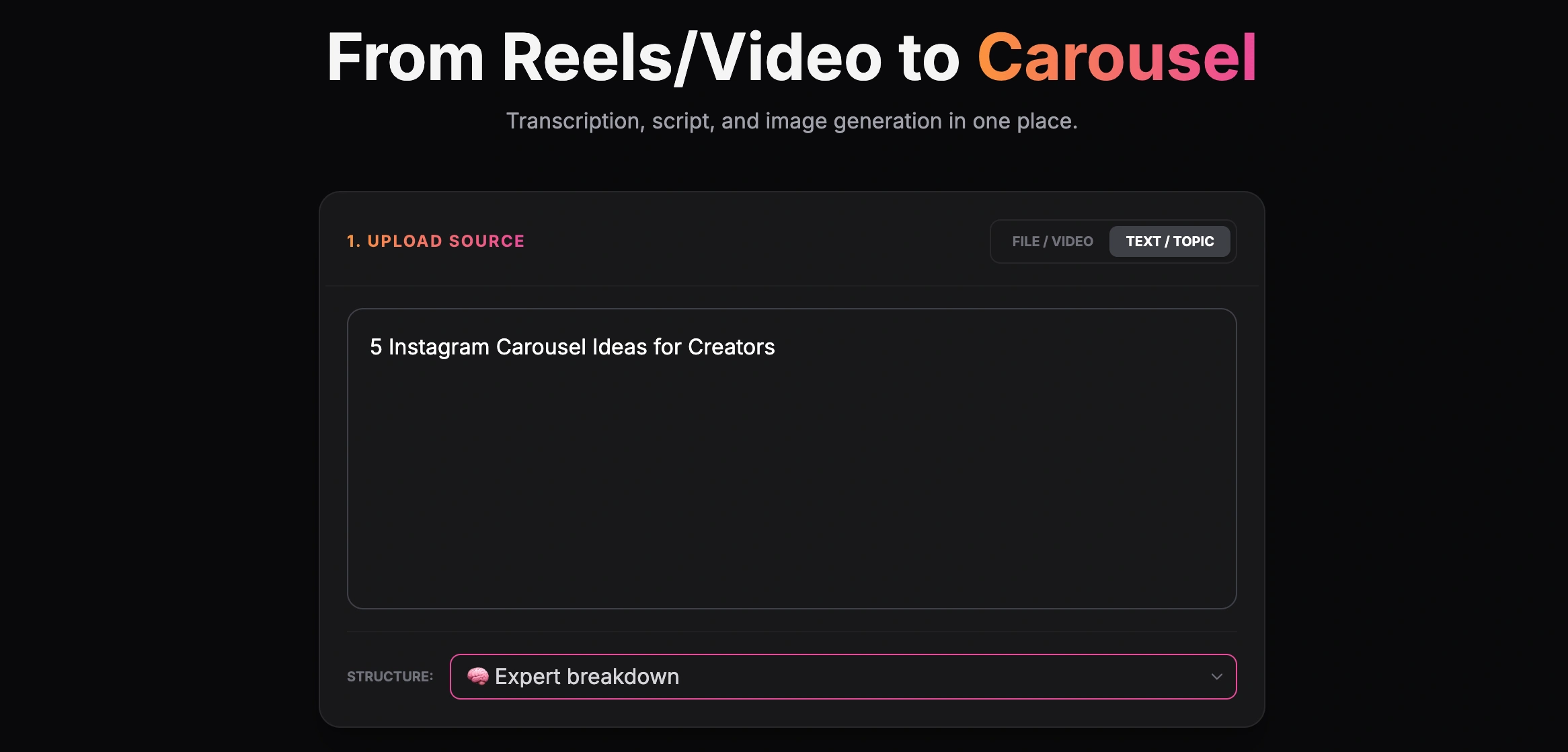
Creating a carousel from a text topic
The AI will process the video, helping extract key ideas, lists, and actionable advice to form the foundation of your carousel. This works best when the video has a clear structure.
Step 2: Configure Your Settings
After extraction, review the script's facts and tone against the recording. Specify the visual direction and inspect the generated slides for brand consistency; generation does not guarantee a match or imply direct editing controls for every text box.
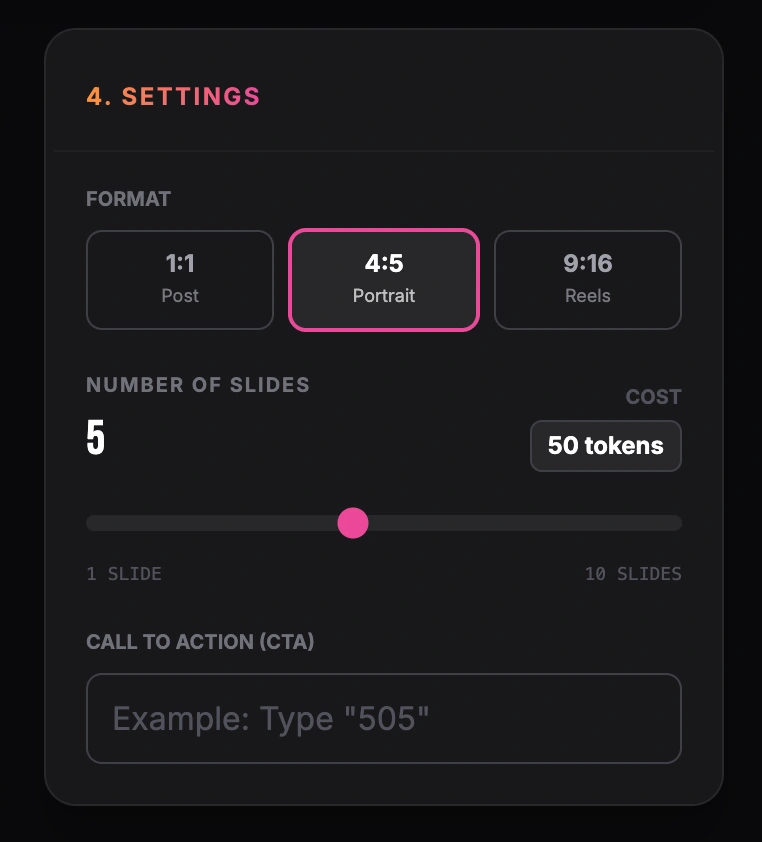
Setting format, number of slides and call to action
You can specify the number of slides, the aspect ratio, and whether you want the AI to include specific calls to action.
Step 3: Review and Generate
With your settings locked in, the AI goes to work. It structures the hook, breaks down the main points into separate slides, and applies your chosen design.
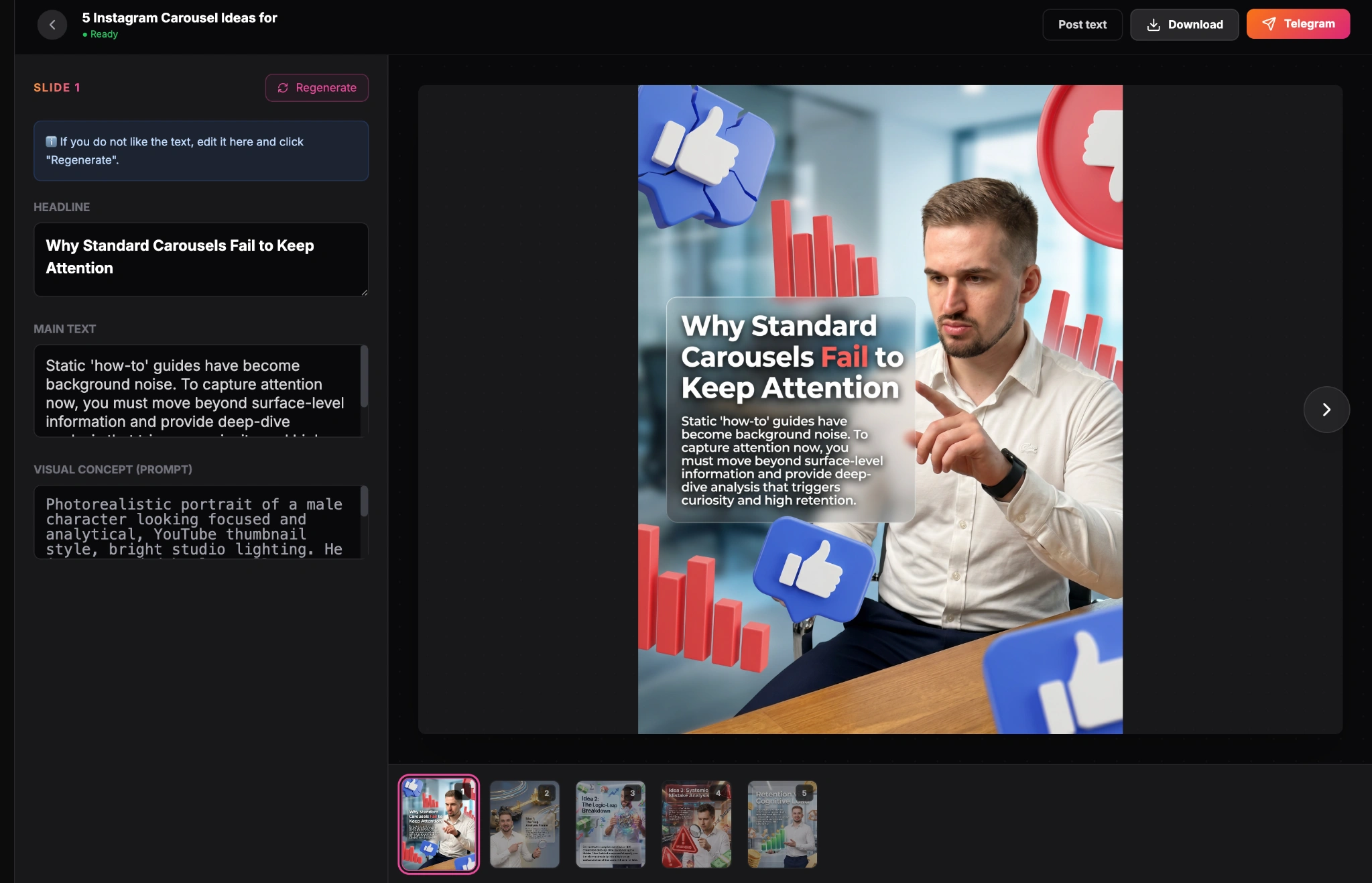
Finished carousel result inside the GoToFlow editor
Review the script and generated slides against the video, correct or regenerate parts as needed, and inspect the exported PDF before uploading it to LinkedIn.
Best Practices for Video-to-Carousel Repurposing
Practical Example: Check a Video-to-Slide Extraction
Suppose your own fictional tutorial explains three checks before importing a spreadsheet: confirm the field names, preview a sample row, and keep a backup of the source. This is an illustrative editorial scenario, not a customer video or a verified generated result.
A possible document sequence is a cover naming the import task, one page for each check, and a final link to your actual instructions. Compare the generated points with the relevant passages in your video. If the AI changes “preview a sample” into “the import cannot fail”, restore the source meaning. Remove private data from any screenshot and verify that you have permission to publish the material.
Open the exported PDF and check order, text, and image clarity before uploading it to LinkedIn. The five-page sequence is an example, not an engagement target; extraction accuracy and completion time must be checked on the actual source.
Turn one video into a LinkedIn carousel
Once you choose the video and key angle, build the LinkedIn carousel in GoToFlow, review the extracted slides, adjust the CTA, and export the PDF when the structure is ready.