GoToFlow AI social media content generator logo
GoToFlow
Guide

How to Make a LinkedIn Carousel with AI

Learn how to make a LinkedIn carousel with AI using hooks, slide structure, prompts, visual style, examples, and a step-by-step carousel workflow.

You’ve seen them in your feed: swipeable LinkedIn posts that explain one idea clearly, keep people reading, and get saved because they feel useful.

That format is often called a LinkedIn carousel. Technically, LinkedIn treats it as a document post: you upload a PDF or document, and each page becomes a swipeable slide.

The problem is that creating a good carousel usually takes longer than expected.

You need an idea, a hook, slide structure, short copy, visual style, a caption, and a CTA. If you start from a blank page, the process can easily turn into two hours of rewriting, resizing text, and moving boxes around.

AI can make that workflow faster.

Not by replacing your thinking, but by helping you turn a rough idea, link, video, article, or competitor example into a structured carousel draft you can edit and publish.

In this guide, you’ll learn how to make a LinkedIn carousel with AI step by step: from the first idea to the final carousel structure, prompts, visual style, and publishing checklist.

What is a LinkedIn carousel?

A LinkedIn carousel is a swipeable document post. You create several slides, export them as a PDF or supported document file, and upload that file to LinkedIn.

LinkedIn then displays the document as a carousel that people can swipe through.

Carousels work well because they are easy to consume. Instead of forcing people to read a long text post, you break one idea into a sequence.

LinkedIn carousels are useful for:

  • step-by-step guides;
  • frameworks;
  • mistakes and fixes;
  • checklists;
  • before-and-after breakdowns;
  • expert opinions;
  • mini case studies;
  • educational posts;
  • product explainers;
  • content repurposing.

A strong carousel is not just a blog post split into slides. It needs pacing. Each slide should make the next one feel natural.

How to post a carousel on LinkedIn

To publish a carousel on LinkedIn, you usually create a document post.

The basic workflow looks like this:

1Create your carousel slides.
2Export the slides as a PDF or supported document file.
3Open LinkedIn and start a new post.
4Upload the document.
5Add a caption.
6Publish the post.

For most creators, PDF is the simplest format because it keeps the slide design consistent.

A few practical tips:

  • use one page per slide;
  • keep text readable on mobile;
  • avoid tiny font sizes;
  • make the first slide strong enough to earn the swipe;
  • check the PDF before uploading;
  • remember that if the document itself has a mistake, you usually need to fix the file and upload it again.

This is why it helps to build the carousel structure before designing. If the logic is weak, the PDF will not save it.

Where AI helps in carousel creation

AI can help with almost every part of the LinkedIn carousel workflow.

The biggest value is not just “write text for slides.” The real value is turning messy input into a clear content structure.

AI can help you:

  • find a stronger angle;
  • write several hook options;
  • turn notes into slide structure;
  • shorten long paragraphs into slide copy;
  • create a stronger CTA;
  • generate visual direction;
  • adapt one idea for LinkedIn;
  • turn a link, video, article, or competitor example into a new carousel concept.

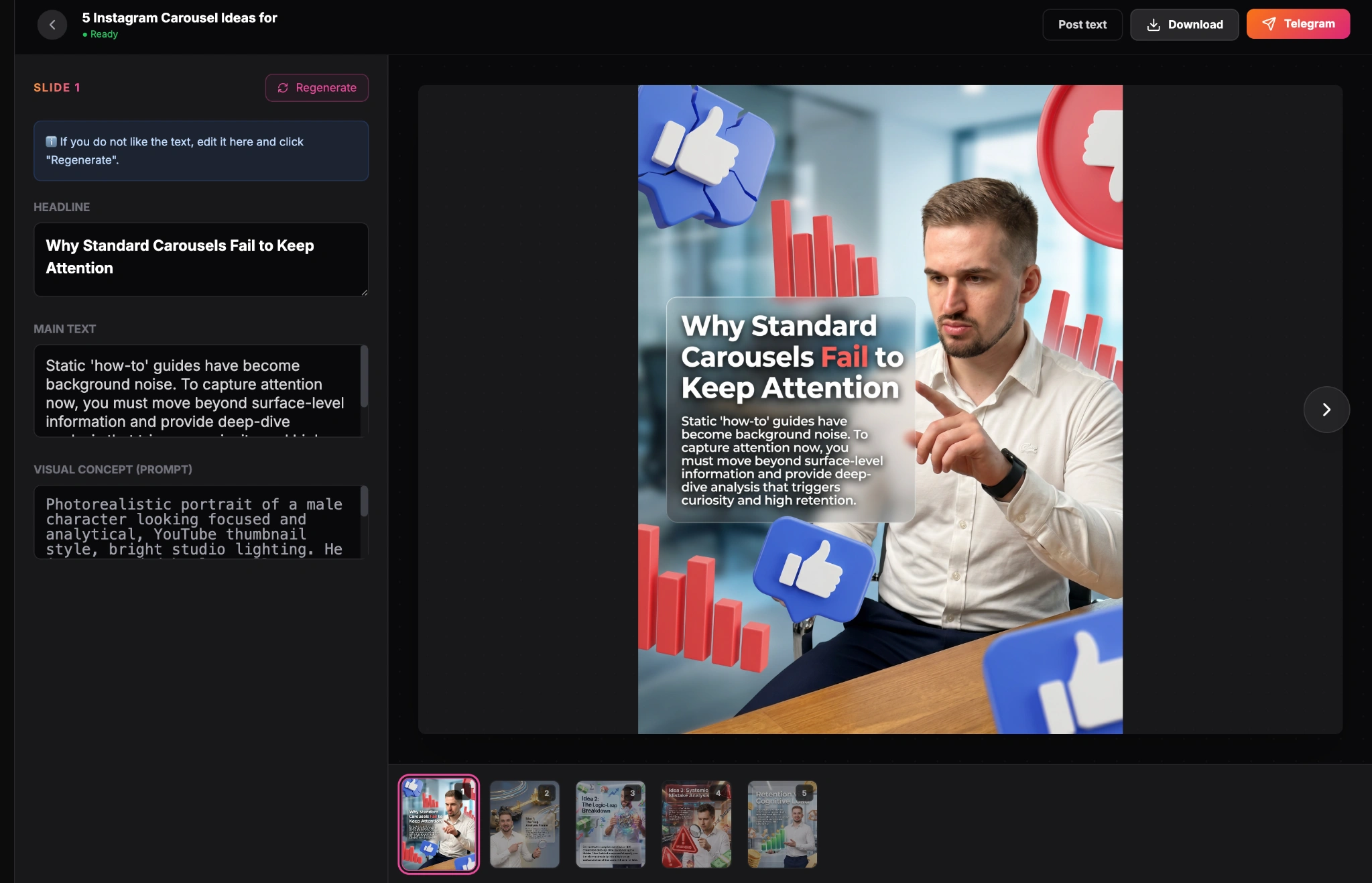
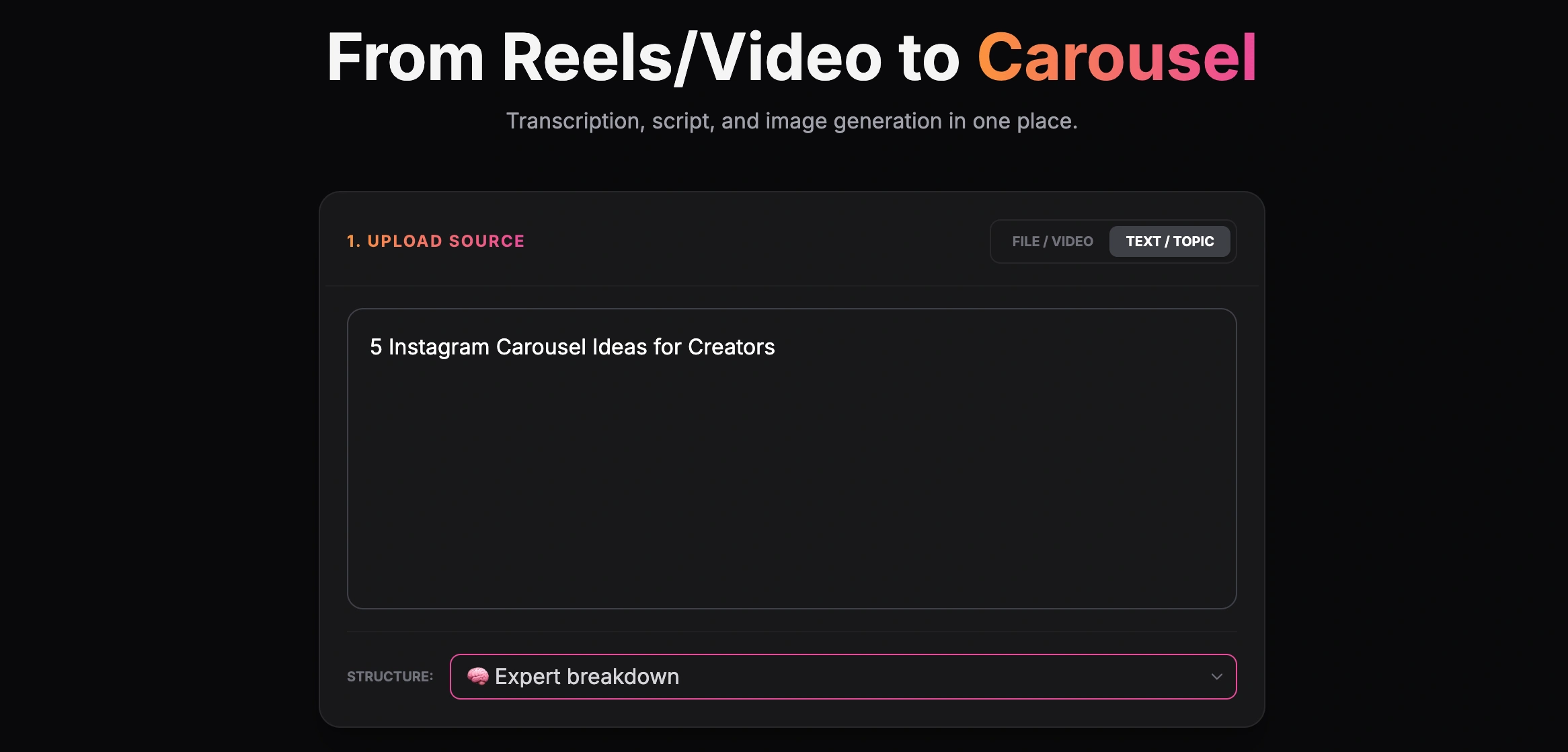
For example, you may find a competitor video that explains a topic well. Instead of manually watching it, taking notes, creating a structure, and writing every slide from zero, you can use AI to analyze the input and generate a new carousel draft.

That does not mean copying the competitor. It means using the source as inspiration, then creating your own angle, structure, and message.
AI chat vs AI LinkedIn carousel generator

You can use a general AI chat to create a LinkedIn carousel. Tools like ChatGPT or Claude can help with ideas, hooks, outlines, and slide copy.

But a general AI chat usually stops at text. That means you still need to:

  • create the slide format;
  • move the copy into a design tool;
  • choose visual style;
  • resize text;
  • build the slides;
  • export the PDF;
  • check readability.

A dedicated AI LinkedIn carousel generator or AI carousel maker is more useful when you want a full workflow.

Workflow
What it helps with
Limitation
General AI chat
Ideas, outlines, hooks, slide copy
No native visual carousel workflow
Design tool
Layout, templates, manual visual editing
Structure and copy often need to be prepared first
AI carousel workflow
Input, hook, structure, copy, visual style, carousel draft
Still needs final human review

If you only need text, a chat assistant may be enough. If you want to move from an idea, link, or video to a structured visual draft, a carousel-focused tool is faster.

How to make a LinkedIn carousel with AI: step by step

1. Choose one clear topic

Do not start with a broad topic like:

Marketing tips

That is too general. A better topic would be:

5 mistakes that make your AI content sound generic

or:

How to turn one client call into 5 LinkedIn posts

AI works better when the input is specific.

A good carousel topic should have:

  • one clear problem;
  • one specific audience;
  • one useful outcome.

Weak topic

Content creation

Better topic

How B2B founders can turn customer calls into LinkedIn carousel ideas

2. Define the audience

A carousel for a founder should not sound like a carousel for a junior marketer. Before generating slides, define who the carousel is for.

Examples:

  • solo founders;
  • B2B marketers;
  • LinkedIn creators;
  • consultants;
  • agency owners;
  • SaaS teams;
  • coaches;
  • product marketers.

The more specific the audience, the sharper the carousel.

Bad prompt

Create a carousel about content marketing.

Better prompt

Create a LinkedIn carousel for B2B SaaS founders who want to turn customer conversations into LinkedIn content.

3. Pick the carousel format

Different formats create different reading experiences. Common LinkedIn carousel formats:

  • How-to guide: teaches a process.
  • Mistakes: shows what to avoid.
  • Framework: gives a repeatable system.
  • Checklist: helps the reader evaluate something.
  • Before/after: shows transformation.
  • Contrarian take: challenges a common belief.
  • Case study: explains what happened and why.
  • Tool breakdown: compares options or workflows.

For AI generation, choosing the format matters because it gives the model a clear structure.

Example:

Turn this topic into an 8-slide LinkedIn carousel using the “mistakes and fixes” format.

Without a format, AI often creates generic slides. With a format, it creates a sequence.

4. Generate several hook options

Slide 1 is the most important slide. If the hook is weak, the rest of the carousel will not matter.

Use AI to generate several versions, not just one. Good hook styles:

  • problem-based;
  • curiosity gap;
  • specific result;
  • contrarian opinion;
  • mistake-based;
  • “before you do X, read this.”

Example prompt:

Write 10 LinkedIn carousel hook options about why AI-generated content often sounds generic. Keep each under 12 words. Make them specific and not clickbait.

A weak hook

How to improve your AI content

A stronger hook

Your AI content sounds generic for 5 fixable reasons

5. Build the slide structure

Once you have the hook, build the carousel structure. A simple LinkedIn carousel structure:

  • Slide 1: Hook
  • Slide 2: Problem/context
  • Slides 3–7: Core points
  • Slide 8: Summary or CTA

A longer carousel may have 10–12 slides, but do not add slides just to make it longer. Every slide should have a job.

Slide 1: Hook Slide 2: Why this problem matters Slide 3: Mistake 1 Slide 4: Mistake 2 Slide 5: Mistake 3 Slide 6: Mistake 4 Slide 7: Summary Slide 8: CTA

The structure should create a reason to keep reading. A carousel is a sequence, not a collection of random tips.

6. Write slide-by-slide copy

Carousel copy should be shorter than normal post copy. On LinkedIn, many people read on mobile. If a slide has too much text, it will feel heavy.

A good rule:

  • one idea per slide;
  • short sentences;
  • no huge paragraphs;
  • avoid tiny text;
  • use clear hierarchy;
  • write for scanning, not deep reading.

AI is useful here because it can turn long notes into short slide copy.

Prompt example:

Turn this outline into slide-by-slide copy for an 8-slide LinkedIn carousel. Keep each slide under 45 words. Use short sentences and plain English.

The goal is not to say everything. The goal is to make the next slide worth reading.

7. Choose a visual style

A carousel is not only text. It is a visual format. You need a style that supports the message.

Possible visual styles:

  • clean SaaS;
  • minimal editorial;
  • bold founder-style;
  • dark premium;
  • light educational;
  • magazine-style;
  • high-contrast LinkedIn;
  • brand-specific style.

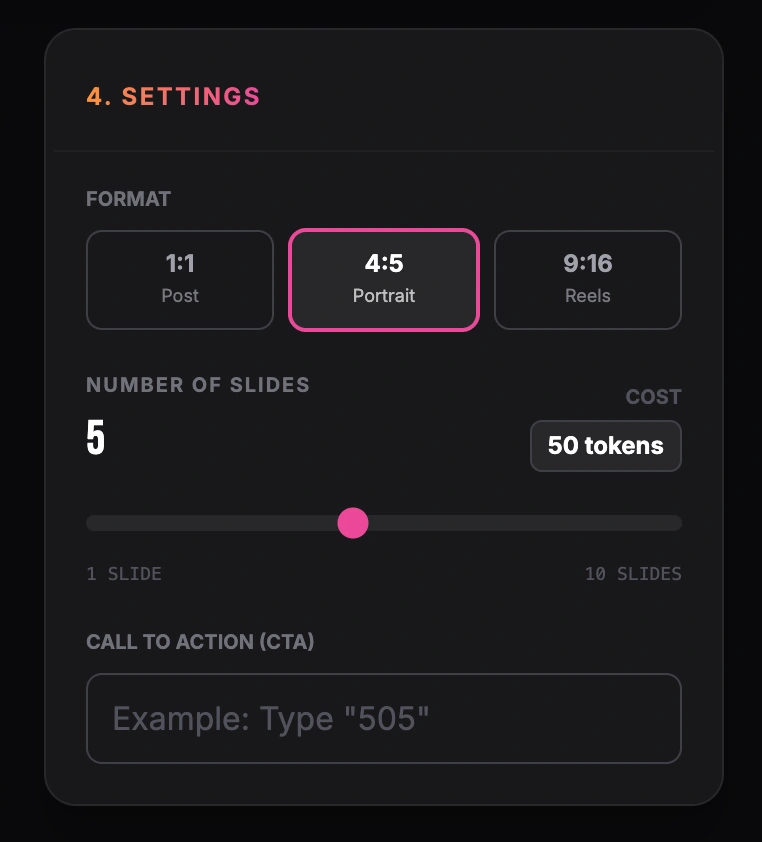
In GoToFlow, the workflow can include visual style selection or a custom style prompt. That matters because you are not just generating slide text — you are shaping the final carousel direction.
A useful style prompt:

Use a clean premium SaaS style, dark background, strong contrast, large typography, subtle gradient accents, and enough whitespace. Make it look professional but not corporate.

8. Generate the carousel draft

Now you can generate the full carousel draft. A complete AI carousel workflow should include:

  • topic or input;
  • audience;
  • format;
  • hook;
  • slide structure;
  • slide copy;
  • visual style;
  • CTA.

This is where a dedicated AI carousel maker is more useful than a generic AI chat. It helps turn the idea into a structured carousel workflow instead of only giving you text.

9. Review and edit manually

AI gives you the draft. You still need to review it. Check:

  • Is the hook specific?
  • Does each slide have one clear idea?
  • Is the sequence logical?
  • Does the copy sound human?
  • Is the visual style readable?
  • Is the CTA clear?
  • Are there any factual mistakes?
  • Would you actually publish this under your name?

The goal is not to publish raw AI output. The goal is to get from zero to a strong first draft faster.

LinkedIn carousel format: PDF, slides, and readability

Before publishing, check the format. For most LinkedIn carousels, the practical workflow is:

slides PDF LinkedIn document post

A few best practices:

  • use one page per slide;
  • keep margins clean;
  • make headlines large;
  • avoid more than one main idea per slide;
  • test readability on mobile;
  • avoid tiny captions or dense paragraphs;
  • export a clean PDF;
  • check slide order before uploading.

If you are using AI, do not only ask for “carousel text.” Ask for slide structure and visual direction too.

Example prompt:

Create a LinkedIn carousel structure for this topic. Include the slide title, slide body copy, visual direction, and CTA for each slide. Keep the copy readable on mobile.

This gives you a better starting point than a plain paragraph.

Best AI tools for making LinkedIn carousels

There are several ways to create LinkedIn carousels with AI.

GoToFlow

GoToFlow is best when you want a full AI carousel workflow: topic, link, video, or competitor example → hook → structure → slide copy → visual style → carousel draft.

It is useful when you want to create a carousel faster without manually rebuilding the entire format from scratch.

Try it with GoToFlow AI Carousel Maker.

ChatGPT or Claude

Good for:

  • brainstorming ideas;
  • writing hooks;
  • creating outlines;
  • rewriting copy;
  • generating prompt variants.

Limitations:

  • no native visual carousel workflow;
  • you still need to move the copy into a design tool;
  • results depend heavily on prompt quality.

Canva

Good for:

  • templates;
  • manual design;
  • brand kits;
  • exporting PDF slides.

Limitations:

  • you still need strong content structure;
  • AI-generated copy may need editing;
  • many templates can feel generic.

Gamma

Good for:

  • slide-style drafts;
  • educational content;
  • mini-decks;
  • structured explainers.

Limitations:

  • can feel more like a presentation than a native LinkedIn carousel.

For a full comparison, read our guide to the best AI carousel generators.

Example: 8-slide LinkedIn carousel structure

Topic:

5 mistakes that make your content sound like generic AI

Slide 1 — Hook

Your AI content sounds generic for 5 fixable reasons.

Slide 2 — Problem

People are not against AI content.
They are against content with no point of view.

Slide 3 — Mistake 1

You start with generic openings.

Bad:
“In today’s digital landscape…”

Better:
“Most AI content fails before the second sentence.”

Slide 4 — Mistake 2

Every sentence has the same rhythm.

AI often writes smooth but boring paragraphs.
Break the rhythm. Use short lines. Add contrast.

Slide 5 — Mistake 3

There are no real examples.

Generic advice feels empty.
Add a client lesson, a mistake, a screenshot, or a specific observation.

Slide 6 — Mistake 4

The carousel teaches too much at once.

One carousel should explain one idea.
Not your entire content strategy.

Slide 7 — Mistake 5

There is no opinion.

AI gives you safe phrasing.
You need to add the point of view.

Slide 8 — CTA

Save this before writing your next carousel.

AI prompts for LinkedIn carousels

Use these prompts to get better drafts.

Idea prompt

I am a [role] helping [audience] with [topic]. Give me 10 LinkedIn carousel ideas that solve a specific pain point. Avoid generic advice.

Hook prompt

Write 10 hook options for a LinkedIn carousel about [topic]. Use curiosity, specificity, and tension. Keep each hook under 12 words.

Structure prompt

Turn this idea into an 8-slide LinkedIn carousel. Slide 1 should be a strong hook. Slide 2 should explain the problem. Slides 3–7 should deliver the main value. Slide 8 should be a clear CTA.

Slide copy prompt

Turn this outline into slide-by-slide copy. Keep each slide under 45 words. Use short sentences, plain English, and one idea per slide.

Humanize prompt

Rewrite this carousel to sound more natural and less like AI. Use short sentences, plain English, and a clear point of view. Remove generic phrases and corporate wording.

Visual style prompt

Create this carousel in a clean premium SaaS style. Use strong typography, clear spacing, dark background, subtle gradient accents, and a professional LinkedIn look.

Caption prompt

Write a LinkedIn caption for this carousel. Start with a short hook. Explain why the topic matters. End with a clear CTA. Keep it natural and not salesy.

Common mistakes when using AI for LinkedIn carousels

Publishing raw AI output

AI drafts often sound too safe. Add your experience, opinion, and examples.

Making slides too text-heavy

If a slide needs tiny font to fit, it has too much text.

Starting with design before structure

A beautiful carousel with weak logic will not work. Start with the message.

Using the same format every time

Mix how-to posts, mistakes, frameworks, checklists, and stories.

No CTA

Tell people what to do next: save, comment, follow, try the tool, or read another guide.

Ignoring mobile readability

Most people will see your carousel on a phone. If the text is hard to read on mobile, simplify the slide.

How GoToFlow helps create LinkedIn carousels faster

GoToFlow helps creators, founders, and marketers move from idea to carousel faster.

You can start with:

  • a topic;
  • a rough idea;
  • a link;
  • a video;
  • a competitor example;
  • a saved post;
  • source material you want to repurpose.

GoToFlow helps with:

  • input analysis;
  • hook generation;
  • slide structure;
  • slide copy;
  • visual style;
  • carousel draft generation;
  • regeneration and refinement.

Instead of jumping between ChatGPT, Canva, notes, and design tools, you can create a structured carousel workflow in one place.

This is especially useful when you do not want to start from a blank page. You can use a topic, link, or video and quickly move toward a structured draft.

Paste a topic, link, or video and get a carousel structure, copy, and visual draft.

Try it free

AI vs manual carousel creation

AI is best for:

  • generating ideas;
  • finding angles;
  • building structure;
  • writing first drafts;
  • creating hook variants;
  • adapting long content into slides;
  • creating visual direction.

Manual work is still needed for:

  • fact-checking;
  • personal experience;
  • final tone;
  • brand voice;
  • publishing decision;
  • checking whether the carousel actually sounds like you.

The best workflow is not AI-only. It is AI-assisted.

Final checklist before publishing

Before you upload your carousel to LinkedIn, check:

  • the first slide has a clear hook;
  • every slide has one idea;
  • the structure flows naturally;
  • the text is readable on mobile;
  • the visual style supports the message;
  • the CTA is clear;
  • the PDF exports correctly;
  • the caption supports the carousel;
  • facts, claims, and examples are accurate;
  • the post sounds like something you would actually publish.

This final check is what turns an AI draft into a professional carousel.

Final thoughts

Learning how to make a LinkedIn carousel with AI is not about removing the human from the process. It is about removing the blank-page stage.

AI can help you move faster from idea to structure, from structure to slides, and from slides to a visual draft.

But the final carousel still needs your judgment.

Start with one clear idea. Build a strong hook. Keep each slide focused. Add your point of view. Then use AI to speed up the workflow instead of replacing the strategy.

If you need more inspiration, check out our guide to LinkedIn carousel ideas, compare the best AI carousel generators, or create your next carousel with GoToFlow AI Carousel Maker.

Frequently Asked Questions

Common questions about LinkedIn carousel generation

Can AI create LinkedIn carousels?

Yes. AI can help create the hook, slide structure, copy, caption, CTA, and visual direction for a LinkedIn carousel. You should still review and edit the final version before publishing.

What is the best way to structure a LinkedIn carousel?

A strong structure usually includes a hook, context, several value slides, a summary, and a CTA. Each slide should have one clear job.

Can I create a LinkedIn carousel from a video or link?

Yes. With the right workflow, you can use a video, article, or competitor example as input, then turn it into a new carousel structure with your own angle.

How many slides should a LinkedIn carousel have?

Most LinkedIn carousels work well with 7–10 slides. Shorter carousels can work if the idea is simple. Longer carousels need stronger pacing.

What format should I use for a LinkedIn carousel?

PDF is usually the simplest format for a LinkedIn carousel because it keeps the slide layout consistent. Create one page per slide and check the file before uploading.

What is the best AI tool for LinkedIn carousels?

It depends on your workflow. GoToFlow is useful for turning a topic, link, video, or competitor example into a structured carousel draft with copy and visual style. ChatGPT or Claude can help with ideas and text, while Canva or Figma can help with manual design.

Should I publish AI-generated carousels without editing?

No. AI-generated drafts should be reviewed for accuracy, tone, readability, and originality. Add your examples and point of view before publishing.

Create Carousels Faster

Create structured, branded LinkedIn carousels with GoToFlow.

Try GoToFlow

Free — No credit card required

Explore more tools and ideas

Мы используем cookies, чтобы улучшить работу сайта и анализировать трафик.